Canvas Gradebook Communication
There is a lot going on in the Canvas Gradebook space. Here is a selection of my favourite tools and options to do with grades in Canvas.
Weighting Grades
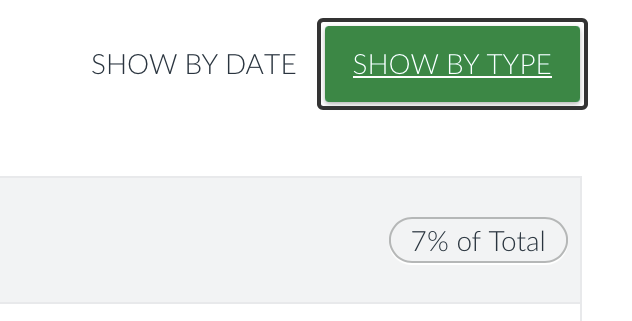
Weighting grades in Canvas is done a little differently from some other platforms. In the assignment tab, faculty will always see grades weighted by group, but students see assignments by most recent and need to press “Show by Type” to see weighting and other rules. Each group then uses points for weighting. You will need to do a little math to ensure proper weighting within a group. If you have a number of small assignments all worth the same, just make sure they are all worth the same number of points. Clear for the students, and easy math.
Granted, students can get a much better breakdown of their grades in the Grades tab, as well as access to the wonderful What If tool. Not to be confused with the ability to change your own grade. 😉
Note that some faculty may choose to leave incomplete work as incomplete all semester, rather than assigning a 0 grade once the deadline has passed. In which case you will need to use the “Calculate based only on graded assignments” toggle.
Gradebook
Instead of an individual student grade, faculty have access to an overview of all of the grades in the course from the Grades tab. Within this gradebook there a tons of amazing tools for supporting students, including a few settings (under the gear icon) to change the layout order, and a number of useful view options in the gradebook.
Item Menu
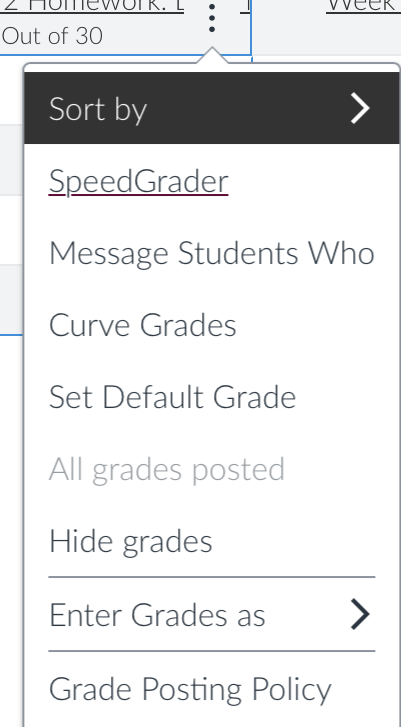
Within the gradebook each item has a small three-dot menu. These allow you to use options that are some of the most powerful features inside Canvas.
There are sort options, direct access to Speedgrader, the ability to post and hide grades, Curve Grades (use at your own risk), and options to post or set default grades, and “message students who”.
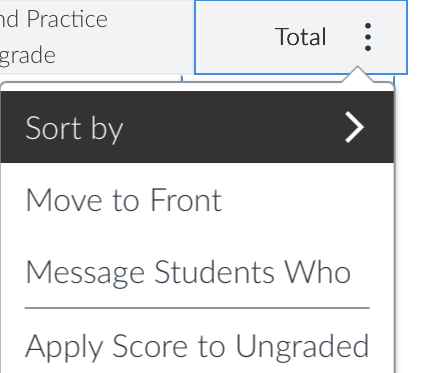
Additionally, on the Total column at the far right of the gradebook there is a “Move to front” option, that moves the total column to the far left making it easier to monitor throughout the semester.
Default Grades
When a due date passes, a missing grade should generally receive a 0. To do this there is a “set default” command in the three-dot menu of every gradebook item.
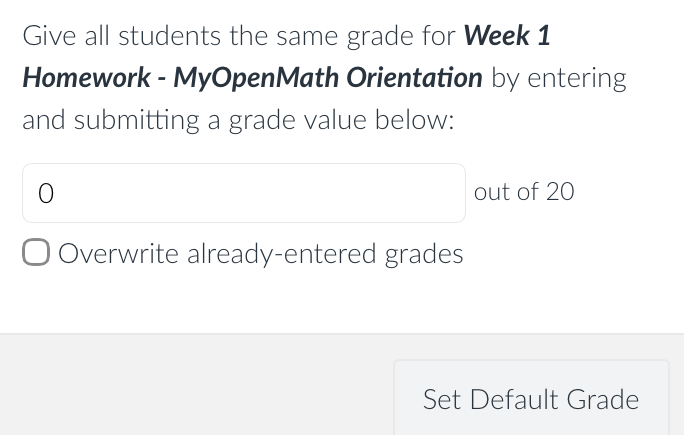
To do multiple assignments at once, there is even an “Apply Score to Ungraded” option in the total grade column. Both of these commands also have an option to mark those items as missing, a great visual in the Canvas Gradebook to colour code assignment statuses and separate missing from excused, etc., items.
In the Gradebook settings, gear in top right, there is also an option to automatically set grades to 0 when the due date passes, but this only works for Canvas native assignments, not external platforms.
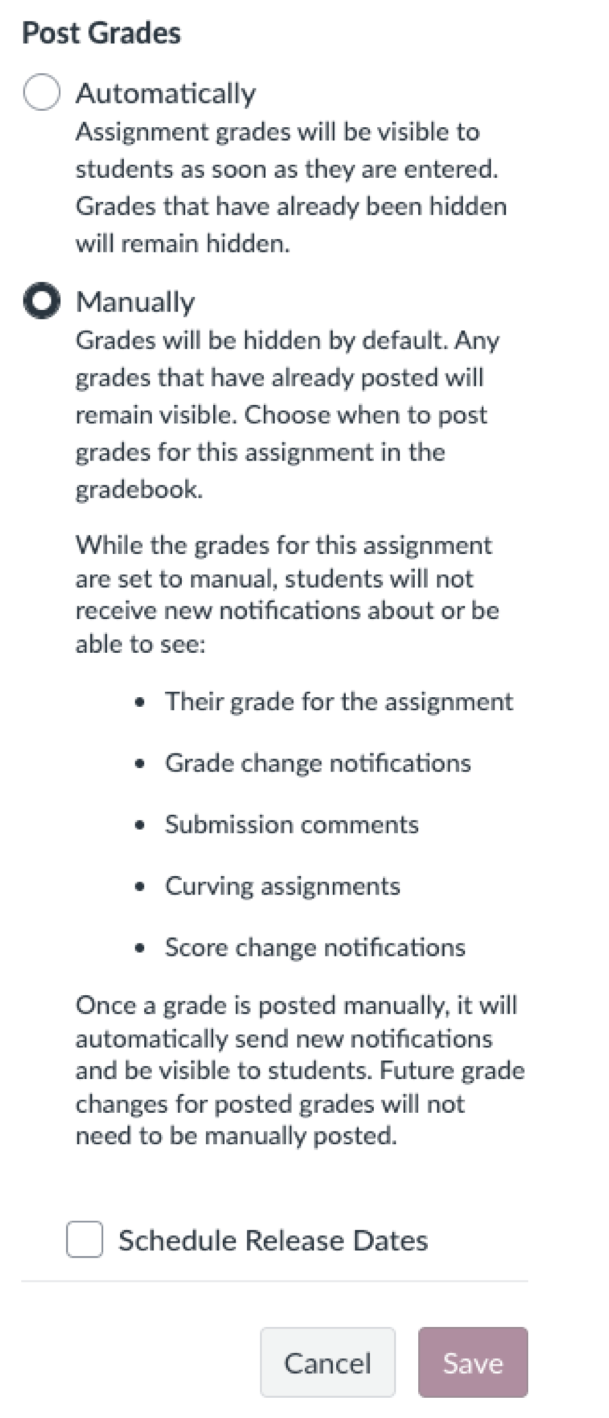
In the event students shouldn’t view the grades until they are reviewed there is the “Grade Posting Policy” option. There’s even an option to schedule the grade release for later (say after, rather than during, their next class)
Message Students WHO
In this same menu is the “Message Students Who” option. Instead of blanket student assignment reminders, those that need the reminder can be targeted with “Scored less than” or “Have not yet submitted”. This is great right before a deadline, or even after if there is a way they can resubmit or fix their grade in some way. Messaging students who “Scored more than”, say a point or two off perfect, can be rewarding and not leave out those that are doing well. It can be really nice to know you’re doing okay and the prof noticed.
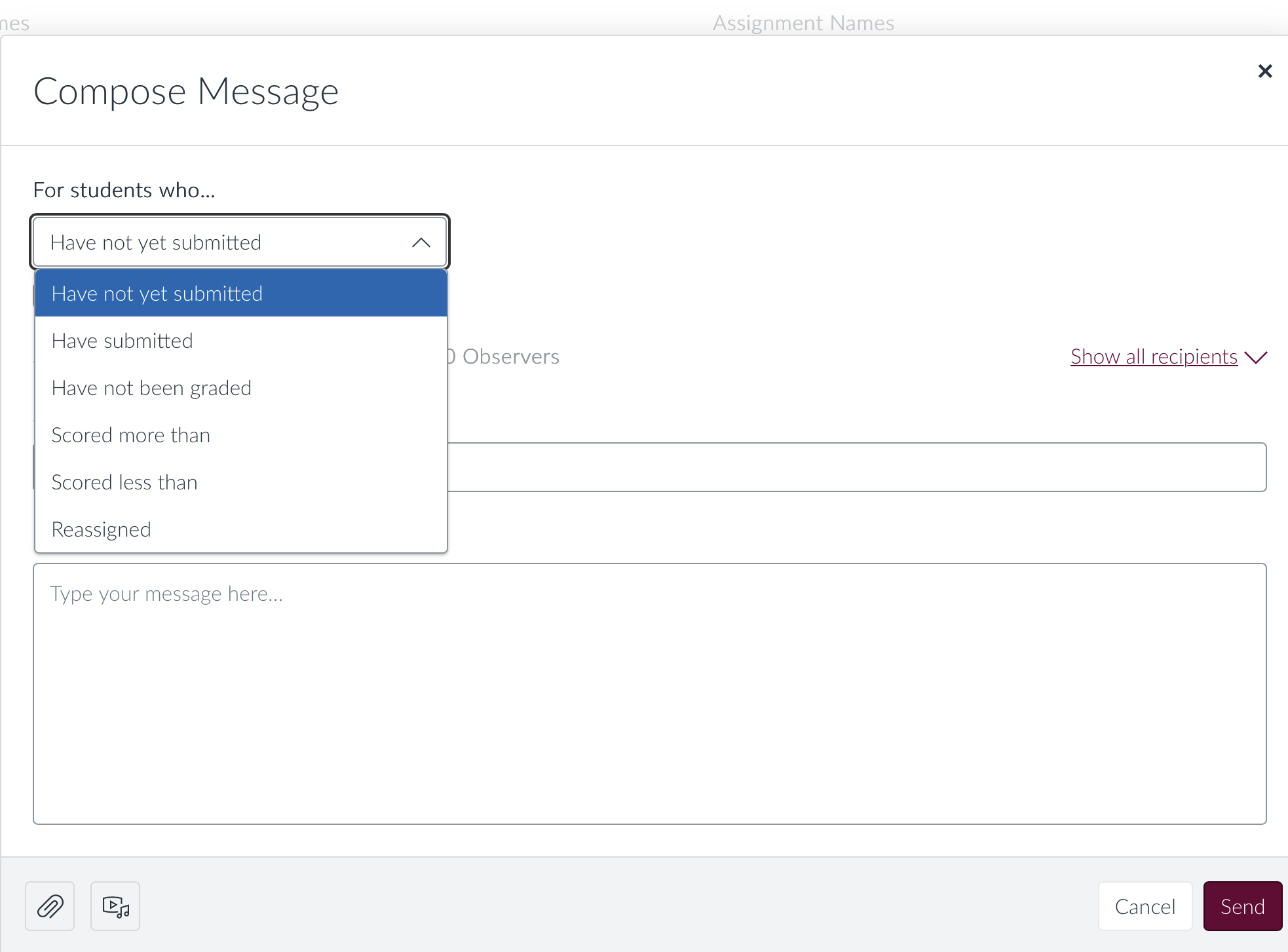
Students may also reply directly in the gradebook, so make sure to check in on the submission comments regularly.
Gradebook Download
As faculty, the final grade in the system may vary depending on how you are using the gradebook. For this reason, if you download the Canvas Gradebook, you will see 8 different “Final Grade” columns, relating to the 3 binary decisions you can make (23 = 8).
- Grade vs Score – Grade are letters if available, score are Percentage.
- Current vs Final – Current is only graded (evenly weighted), Final treats blanks as 0.
- “normal” vs Unposted – Unposted includes Muted/hidden assignments in the grade.
I personally, based on my grading policies, use Unposted Current Score, which matches the faculty view of the gradebook.
Gradebook Settings
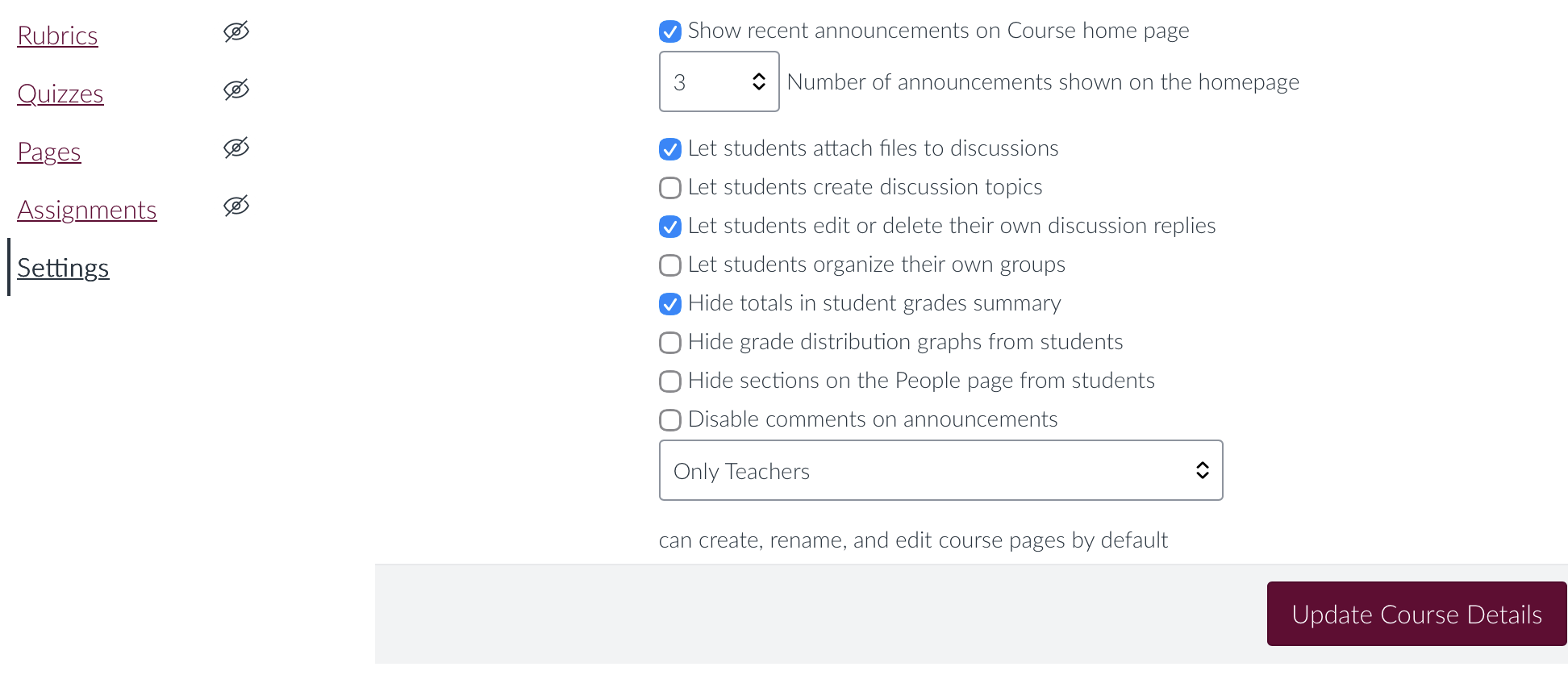
There are also two rather hidden gradebook options that can be found in the main settings for the course. These are the settings hide the Totals and/or distributions from students. Although the total grade is essential for students during the semester you may want to hide it near finals. The distributions and graphs are really nice to have, though should be hidden in extremely small classes.
Canvas has so many more amazing tools, so be sure to poke around and learn more every day.